Making images searchable: a practical guide to image ingestion
Photos, diagrams, screenshots and scans hold a lot of what an organisation knows, and most knowledge bases quietly skip them. How to chunk images, which vectors to make, and how to search them alongside text.
In the last post I walked through how a knowledge base turns documents into something a model can search. Most of it was about text, because that's where most pipelines start. This one is about everything else in the folder: the photos, diagrams, screenshots, scanned forms and slides.
They matter more than people expect. A damage claim is mostly a photo. A runbook's most useful page is often an architecture diagram. Half of a quarterly review lives in charts. If the knowledge base skips images, it doesn't just miss those files; it gives confident answers that are missing the evidence.
Here's how I'd ingest them, in the order the work actually happens.
Images aren't text, so start with what you want to find
With text, the content and the thing you search for are the same: words. With an image, there are at least four different things someone might be looking for:
- What it shows. “A crushed box on a doorstep.”
- What's written on it. A label, a part number, a heading on a slide.
- What it looks like. Another photo of a similar dent, a diagram with the same shape.
- Where it came from. The ticket it was attached to, the section of the manual it sits in.
Each of those needs a different kind of extraction, and the pipeline below is mostly about making sure all four end up attached to the chunk.
Step 1: Extract everything you can say about it
Before any embedding, turn the image into as much useful text as possible. This is cheap compared to what it saves later.
- OCR. Read any text in the image. Labels, signs, screenshots of error messages, slide titles. Keep the confidence score; low-confidence OCR is a good signal to send a file for review.
- A caption from a vision-language model. Ask for a plain, factual description, not a poetic one. Give it a hint from the surrounding text (“this image is attached to a damage claim”) so it describes what matters in that context.
- The surrounding context. The heading the image sits under, the paragraph before it, the figure caption, the alt text, the file name, the ticket title. This is often the most useful text of all, and it's free.
- Basic metadata. Source, page, date, size, and who is allowed to see it.
A useful prompt for the caption is short and specific:
Describe this image factually in two or three sentences for a search index.
Mention objects, their condition, any visible text, and the type of image
(photo, diagram, chart, screenshot). Context: {surrounding_heading}.
Do not guess at things you cannot see.
The last line matters. Vision models will happily invent a brand name on a blurry label, and an invented detail in the index is worse than a missing one.
Step 2: Decide how to chunk it
For text, chunking means splitting. For images, the default is the opposite: one image, one chunk. A photo or a simple diagram is one idea. Splitting it would only lose the whole.
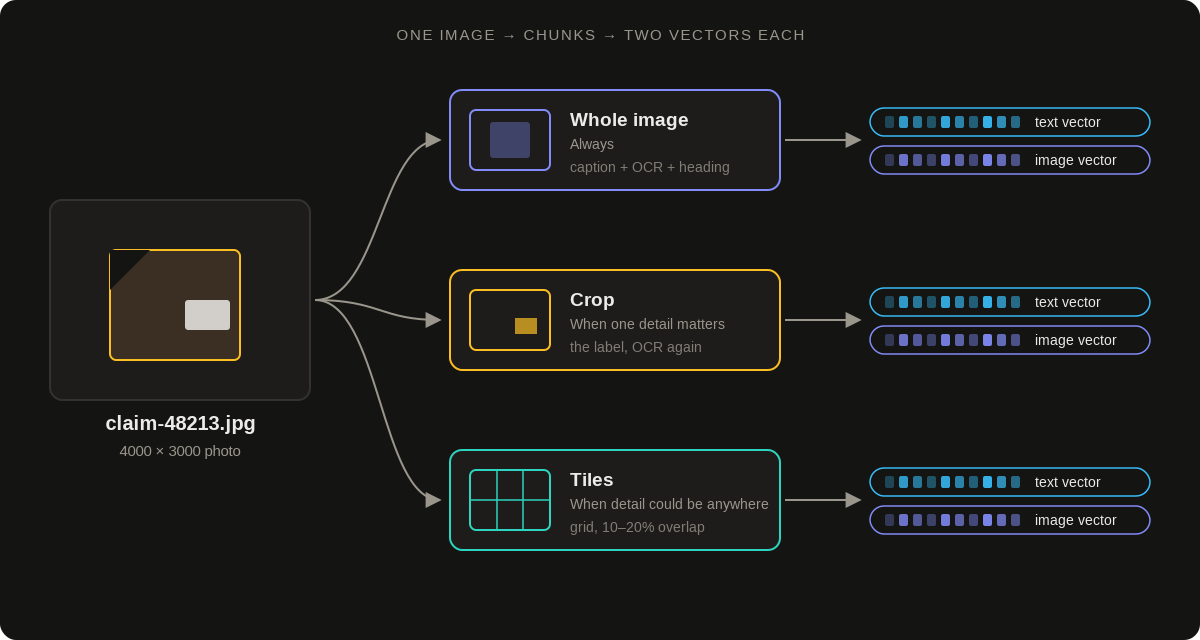 Start with one chunk per image. Add crops where a small detail matters, and tiles where it could be anywhere.
There are three cases where you do split, and each is driven by the same problem: embedding models look at images at low resolution. Most multimodal models resize the input to something like 224 to 448 pixels on a side. A 4000 × 3000 photo shrinks by roughly ten times, and anything small in it, like a label, a part number or a cracked corner, turns into a few pixels.
Crops, for a detail you can find. If there's a specific object that matters (a shipping label, a product, a damaged area), use an object detector to find it, crop it, and make the crop its own chunk. Run OCR again on the crop; it will often read text the full image couldn't.
Tiles, for detail that could be anywhere. Floor plans, maps, engineering drawings and long screenshots don't have one object of interest. Cut them into a grid of overlapping tiles, about 10 to 20 percent overlap so nothing important sits exactly on a cut line, and make each tile a chunk. Keep the whole-image chunk too, for questions about the overall picture.
Regions, for document pages. A scanned page or a slide is a mix of text blocks, tables, charts and figures. A layout model can split it into those regions. Text regions go into the normal text pipeline; charts and figures become image chunks with their own captions.
Every crop, tile and region records where it came from:
{
  "id": "claim-48213#label",
  "kind": "image-crop",
  "parent": "claim-48213#img",
  "box": { "x": 2300, "y": 1400, "w": 400, "h": 250 },
  "heading": "Ticket CLM-1182 › Parcel damaged on delivery",
  "caption": "Close-up of a torn shipping label with a FRAGILE warning and a barcode.",
  "ocr": "FRAGILE  THIS WAY UP  TRK 48213  ZONE A",
  "source": "tickets/CLM-1182/claim-48213.jpg",
  "acl": ["claims-team", "support"]
}
The parent and box fields are what let an answer say “here's the label” and highlight the
right part of the original photo, rather than linking a file and hoping.
Step 3: Make two vectors per chunk
Each image chunk gets two vectors, from two different models, for two different kinds of match.
A text vector. Join the heading, caption and OCR text into one passage and embed it with the same text embedding model you use for documents. This puts the image into the same space as every paragraph in the knowledge base. A question like “photos of crushed parcels” finds it through the caption, exactly like it would find a paragraph.
An image vector. Embed the pixels with the image encoder of a multimodal model. CLIP is the well-known example: it has an image encoder and a text encoder, trained so that a photo and a sentence describing it land close together. That gives you two things the caption can't:
- matches on visual details the caption never mentioned, and
- search by example: upload a photo of a dent, find other photos of similar dents.
def embed_image_chunk(chunk: ImageChunk, pixels: Image) -> None:
    text = f"{chunk.heading}. {chunk.caption} {chunk.ocr}".strip()
    chunk.vectors = {
        "text": normalise(text_embedder.embed("passage: " + text)),   # e.g. 1,024 dims
        "image": normalise(clip.encode_image(pixels)),                 # e.g. 768 dims
    }
    chunk.models = {"text": TEXT_MODEL_VERSION, "image": IMAGE_MODEL_VERSION}
Three rules for these vectors:
- Never compare across them. They come from different models, with different sizes and meanings. Store them in separate fields or separate indexes.
- Normalise them. With unit-length vectors, cosine similarity is just a dot product, which is what vector indexes are fastest at.
- Record the model version next to every vector. When you change a model, every vector it made has to be rebuilt.
For visually dense pages, like slides and forms, there's a third option worth knowing about. Late-interaction document models such as ColPali skip OCR and captions entirely and embed a screenshot of the page as many small vectors, one for each patch of the image. They handle charts and messy layouts remarkably well. The cost is storage, roughly a thousand small vectors per page instead of one, so I'd use them for page collections where layout carries meaning, not for every photo.
Step 4: Search both, then merge by rank
At query time, the question is embedded twice, once by each model, and each embedding searches the matching field. Keyword search runs alongside, because it's what finds “48213” or an error code exactly.
def search(q: str, user: User, k: int = 20) -> list[Chunk]:
    allowed = {"acl": user.groups}
    by_text  = index.search("text",  text_embedder.embed("query: " + q), k, where=allowed)
    by_image = index.search("image", clip.encode_text(q),                k, where=allowed)
    by_words = index.keyword(q, k, where=allowed)
    return rerank(q, rrf(by_text, by_image, by_words))[:8]
Merge by rank, not by score. Similarity scores from different models aren't on the same scale. Text-to-image similarities from CLIP-style models are typically much lower than text-to-text ones, so adding scores together would bury every image. Reciprocal rank fusion only looks at positions, which sidesteps the problem.
If someone searches with a photo instead of words, the same index works: embed the photo with the image encoder and search the image field.
Step 5: Give the model something it can use
Retrieval found the image. Now the language model has to answer from it, and there are two ways to hand it over:
- Send the text. The caption, OCR text and heading. Cheap, works with any model, and usually enough for “was this parcel marked fragile?”
- Send the image itself to a model that can see. Better for questions about details the caption didn't cover, and more expensive per question.
A sensible default is to send the text for every retrieved chunk, and attach the actual image (or the crop) only for the top one or two image results. Either way, show the image in the answer next to the citation. People trust an answer much more when they can see the photo it came from.
What to measure
Image retrieval fails quietly, so test it the same way as text: a set of real questions, each with the image or region that should answer it.
- Did the right image appear in the top five? Measure it separately for text questions, questions that need OCR text, and search-by-photo.
- Which vector found it? If almost every hit comes from the text vector, your captions are doing the work and the image vector may not be worth its storage yet. If the image vector finds things the captions miss, your captions need more detail.
- Were crops and tiles worth it? Compare results with and without them on the questions that depend on small details.
Where I'd start
If you're adding images to an existing text knowledge base, do it in this order and stop when your test questions stop improving:
- One chunk per image, with OCR, a caption and the surrounding heading, embedded with your existing text model. This alone makes most images findable.
- Add an image vector from a multimodal model, searched separately and merged by rank.
- Add crops for the objects that matter in your domain, and tiles for large drawings and plans.
- Try a late-interaction page model for slide and form collections where layout carries meaning.
The pattern is the same as for text. Most of the quality comes from the boring part: extracting everything you can say about the image, keeping where it came from, and making sure the right person can find it.